


Rating
Epson is a well-known name in the world of printers, particularly for its multifunction models like the EcoTank L5190. This all-in-one device functions as a printer, scanner, copier, and fax machine. A standout feature is its EcoTank cartridge-free printing system, which replaces traditional cartridges with refillable ink tanks that use cost-effective ink bottles. Epson has adopted this system across many of its printers to reduce printing costs. If you’re curious about what the Epson EcoTank L5190 offers and whether it suits your needs, keep reading this review.
Epson EcoTank L5190: Who is it good for?
The Epson EcoTank L5190 all-in-one printer is ideal for:
Home users with high printing volumes looking to reduce ink expenses
Those who require a simple scanner or fax function alongside their printer
Small businesses that don’t require premium photo print quality
Users who want a WiFi-enabled printer that supports mobile device connectivity
Pros and cons
Strengths of the Epson EcoTank L5190:
Uses low-cost ink bottles, allowing you to save up to 90% on refills compared to traditional cartridge printers
Easy and clean ink tank refilling process, minimizing spills and mess
The Draft print mode consumes very little ink, ideal for quick, low-cost prints
Produces good quality prints when using Standard or higher print settings
Supports printing from multiple devices, including PCs, smartphones, and tablets (both iOS and Android)
Offers borderless printing on photo paper for pictures
Equipped with a helpful LCD screen for easy printer interaction
Considerations and downsides:
Draft quality is not suitable for documents containing colored text or images
Color reproduction in photo printing could be improved
Installation and setup can be challenging and time-consuming
Epson’s software interface could use enhancements to better compete with alternatives
The printer does not include a USB cable in the box
PRODUCT RATING
3.5/5
Verdict
The Epson EcoTank L5190 is designed to save you money over time: while the initial cost is higher, its ink lasts much longer and refills are very affordable. Using Standard quality settings, it delivers good print quality suitable for most needs. Its scanner and copier features are practical for both home and small office use. However, this printer also has some drawbacks. Before making a purchase decision, be sure to review the detailed sections below to fully understand the strengths and limitations of the Epson EcoTank L5190.
Hardware specifications and design
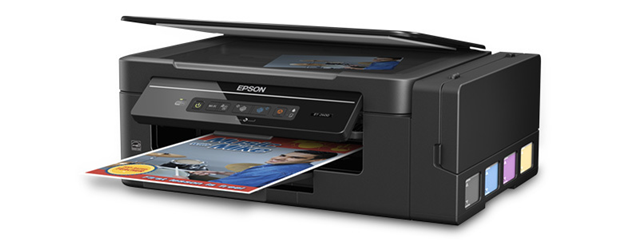
The Epson EcoTank L5190 features a cartridge-free printing system with large refillable ink tanks for black, cyan, yellow, and magenta inks supplied in bottles. The initial ink supply can print up to 8,100 pages in black and 6,500 pages in color when using Draft quality settings. Additionally, you can replenish the ink using cost-effective 103 EcoTank ink bottles, which significantly reduces the overall cost of ownership compared to conventional printers.
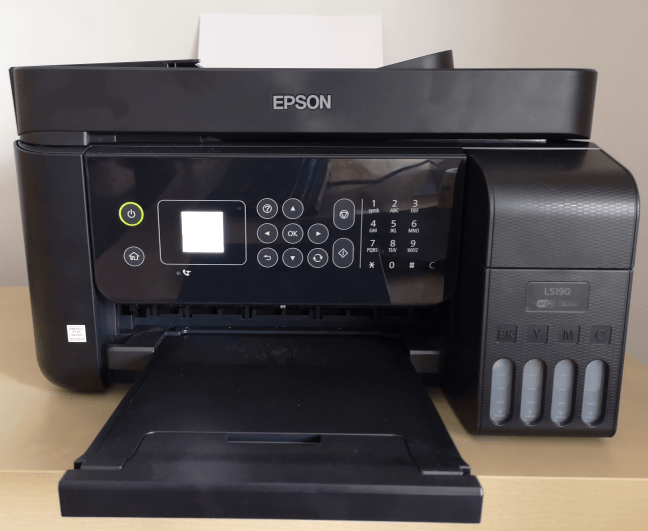
Epson EcoTank L5190
The Epson EcoTank L5190 offers a maximum print resolution of 5760 x 1440 dpi. It delivers print speeds of up to 10 pages per minute for black-and-white documents and 5 pages per minute for color prints. The input tray holds up to 100 sheets of paper or 20 photo sheets, while the output tray can accommodate up to 30 sheets. Additionally, the printer includes an automatic document feeder (ADF) with a capacity of 30 pages, making it well-suited for most home users and small office environments.
This all-in-one printer also functions as a scanner, copier, and fax machine. It allows you to scan documents and photos at resolutions ranging from 75 DPI up to 1200 DPI. Scanned files can be saved in various formats, including PDF, BMP, JPEG, and TIFF.
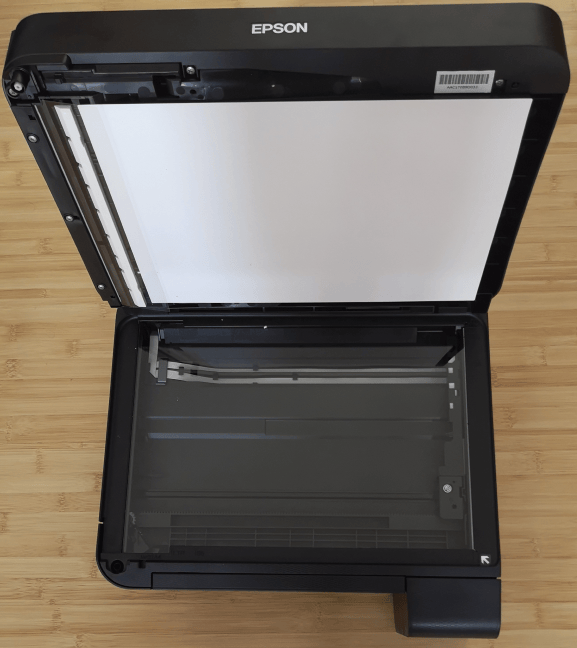
The scanner on the Epson EcoTank L5190
The Epson EcoTank L5190 is a wireless printer compatible with 802.11 b/g/n WiFi standards and also supports WPS for quicker connection to your home network.
It supports a wide range of operating systems, including Windows (from XP through Windows 10), macOS 10.6.8 and later, as well as Android and iOS devices via the Epson Connect mobile app. The printer’s dimensions are 14.7″ (width) x 13.6″ (depth) x 9.33″ (height), or 375 x 347 x 237 mm, and it weighs approximately 11 lbs (5 kg).
For complete official specifications, including supported paper types, visit the Epson EcoTank L5190 product page.
Installing and setting up the Epson EcoTank L5190 printer
Once you unbox the printer and remove all protective materials, the next step is to fill the ink tanks. This process is straightforward and user-friendly, suitable for anyone. A notable improvement over earlier EcoTank modelssuch as the Epson Expression ET-2600 is that refilling now creates minimal to no mess.
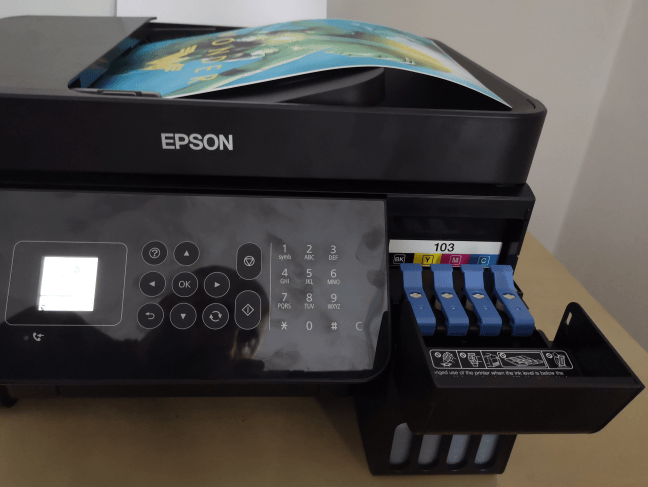
The ink tank on the Epson EcoTank L5190
After filling the ink tanks, power on the printer to begin the initialization process, which takes about 10 minutes. Once completed, you can proceed with the printer setup and connect it to your network. The small LCD screen and nearby buttons make navigating the setup process somewhat easier.
However, installing the printer on our Windows 10 PCs and Android smartphones proved challenging. When attempting to connect via Wi-Fi Direct from our smartphones, the printer repeatedly displayed the error message: “The printer is busy, try again later.” After several unsuccessful attempts, we switched to using the WPS function to connect to the network. Although it initially failed, it eventually succeeded. We also tried installing the printer Epson Driver on Windows 10; while the printer and its IP address were correctly detected, the installation process froze at a certain screen and ignored all input, forcing us to close the setup manually.
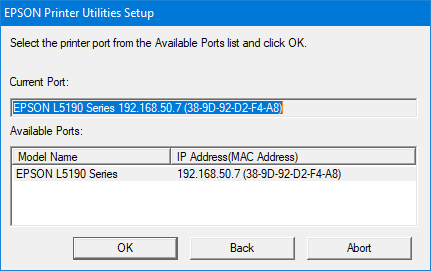
The EPSON Printer Utilities Setup is unresponsive
The absence of a bundled USB cable was particularly frustrating, as having one would have allowed a straightforward installation before configuring the printer for network use.
Fortunately, the Windows 10 printer installation wizard performs reliably and was able to detect and successfully install the Epson EcoTank L5190 once it was connected to the network.
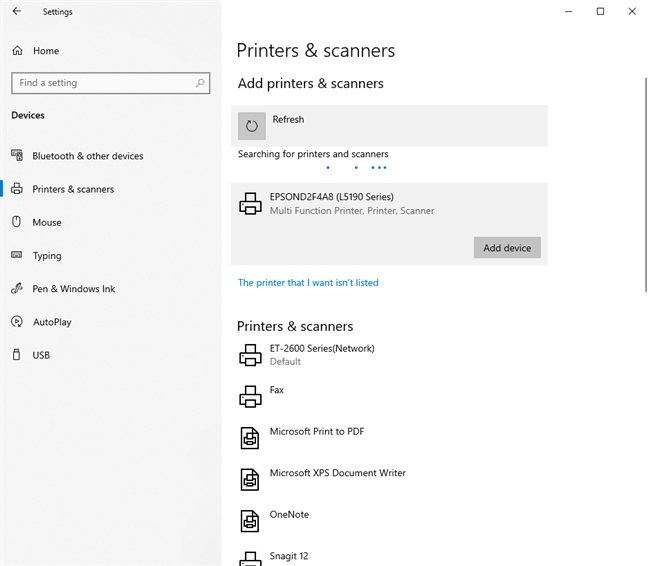
Installing the Epson EcoTank L5190 from Windows 10
If you encounter difficulties connecting the Epson EcoTank L5190 to your network wirelessly, you can use an Ethernet cable to connect it directly to your router or a network switch. This allows you to access the printer remotely and configure its WiFi settings.
After installing the printer, be sure to download and install the latest software from Epson’s website, and use the Epson Firmware Updater to keep the firmware up to date. This will help ensure you get the best possible experience with your Epson EcoTank L5190.
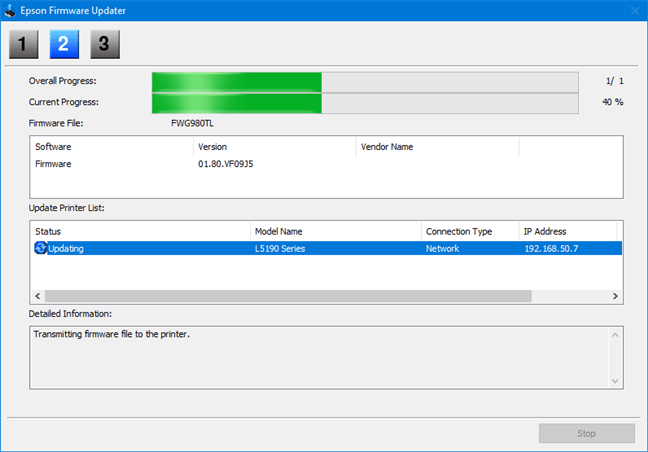
Updating the firmware on the Epson EcoTank L5190
Installing and setting up the Epson EcoTank L5190 takes longer than with traditional cartridge-based printers. The process is also more complex than expected, largely due to bugs in the Windows drivers that require fixing. Additionally, the Wi-Fi Direct connectivity tends to be unreliable.
Using the Epson EcoTank L5190 printer
We printed dozens of pages containing text, images, and mixed content on both regular and photo paper. The Epson EcoTank L5190 offers four print quality presets: Draft (which uses the least ink but has lower quality), Standard, Standard-Vivid, and High.
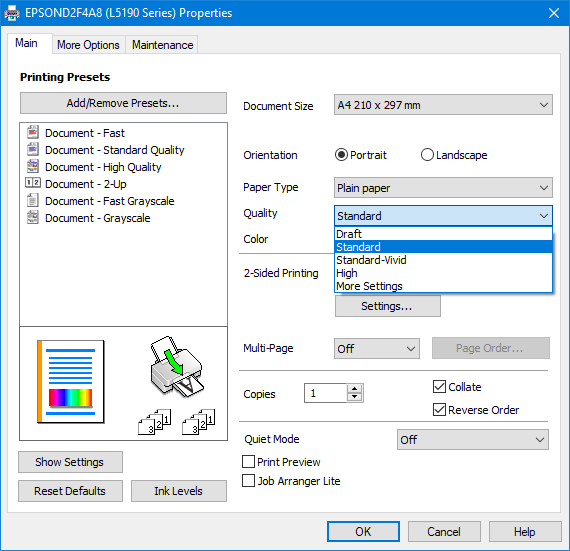
he quality presets for printing with the Epson EcoTank L5190
When printing images or documents that combine text and multiple colors, the Draft quality preset produces poor results, as shown below. For better print quality, it’s recommended to use the Standard or Standard-Vivid settings the latter being particularly effective for images. The High quality preset delivers the best results, but it significantly increases both print time and ink usage. One drawback of using the High setting is that printed pages often come out damp, requiring extra drying time before they can be handled.

Draft vs. Standard vs. Standard-Vivid vs. High quality settings
For printing black text only, the Draft quality preset is serviceable, but most users will likely prefer the Standard setting for better clarity. When it comes to text, the difference between the Standard-Vivid and High quality presets is minimal, offering no significant advantage to justify using the High setting.
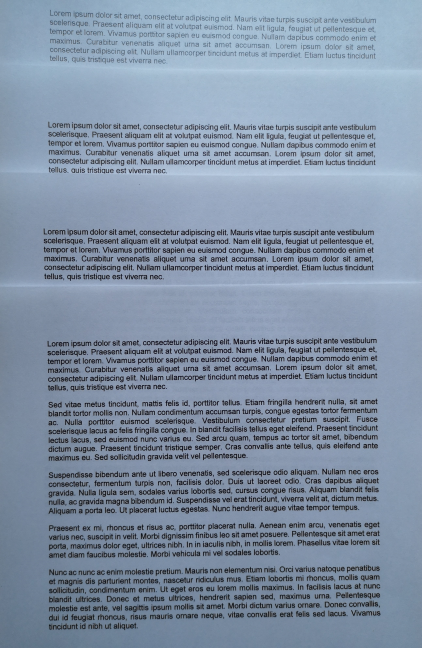
Draft vs. Standard vs. Standard-Vivid vs. High quality settings
For photo printing, it’s best to use either the Standard-Vivid or High quality presets, as the lower settings produce subpar results. However, even with the higher quality presets, the output may still fall short of expectations. For example, when we printed a Wonder Woman poster using the Epson EcoTank L5190 and compared it to the original listed on eBay, the skin tones appeared unnatural, and the print lacked sufficient magenta, affecting overall color accuracy.

Poster printed by the Epson EcoTank L5190
While Epson advertises borderless photo printing with the EcoTank L5190, this feature is limited to smaller-sized photo paper. If you attempt to print on A4 or US Letter paper, borderless printing isn’t supported, which may be a drawback for some users. Another inconvenience is that duplex printing is manual rather than automatic, making double-sided printing a more time-consuming task.
When scanning documents or images, the printer offers resolution options ranging from 75 DPI to 1200 DPI. Higher DPI settings provide better scan quality and capture more detail, but they also significantly increase the scanning time.
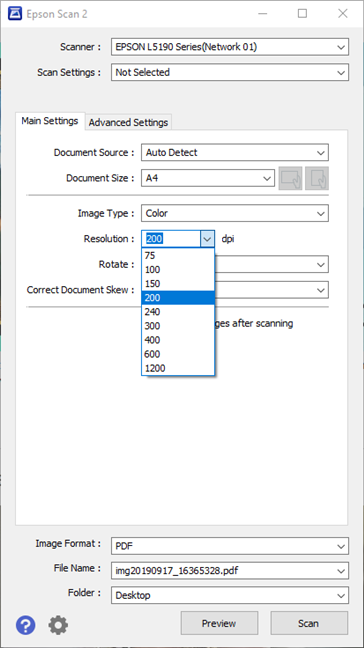
Epson Scan 2
The scan quality is quite good, provided you stay above 200 DPI. However, opting for higher resolutions like 600 or 1200 DPI significantly increases the scanning time, so patience is required. One downside we noticed is that the Epson Scan 2 application feels somewhat basic and less user-friendly compared to similar software from other brands.
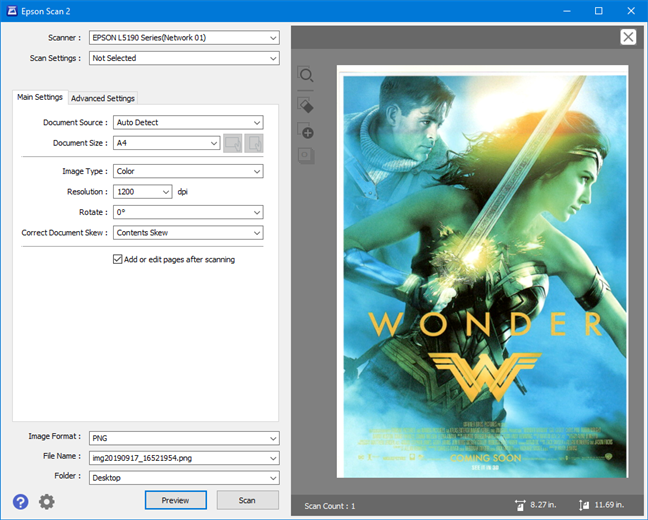
Scanning with the Epson EcoTank L5190
Another letdown is the Automatic Document Feeder (ADF). Although it can hold multiple pages, it doesn’t support scanning more than one page at a time effectively. When attempting to scan or copy a multi-page document, the first page goes through, but the second often gets stuck, resulting in a “Paper jam in the ADF” error. To work around this, you have to manually remove each scanned page before the next one feeds, which is highly impractical. This limitation makes the ADF feel more like a gimmick than a functional feature.
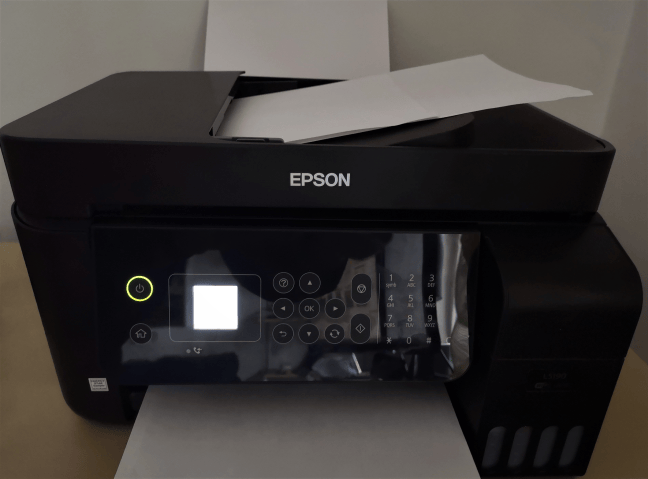
The ADF is jammed on the Epson EcoTank L5190
One notable design advantage of the Epson EcoTank L5190 is its externally visible ink tanks, which make it easy to monitor ink levels and identify which colors are depleting the fastest. Refilling is quick and hassle-free, thanks to the improved ink filling system designed to prevent spills and mess. Additionally, the ink bottles are equipped with a smart mechanism that ensures each tank can only be filled with the correct color.
Printing with the EcoTank L5190 is straightforward. However, the Draft quality setting produces subpar results, particularly for images or documents with mixed content. Switching to the Standard setting significantly improves output quality, though it does lead to higher ink consumption than Epson’s estimated page yields based on a full tank.
What is your opinion about the Epson EcoTank L5190?
Now that you’ve read about our experience with the Epson EcoTank L5190, we’d love to hear your thoughts. Have you used this printer yourself? If so, what has your experience been like? Share your opinions in the comments below, and let’s discuss the strengths and weaknesses of this model together.




xmc.pl
Your text resonates with a meditative cadence, creating a rhythm that mirrors breathing, thought, and gentle movement, fostering presence and attentive engagement in the reader.