How to block websites and filter content in Microsoft Edge to keep your child safe

filter-content-online

Helping your child safely explore the internet is a vital part of parenting today. With so much content readily accessible online, it’s important to have effective tools to manage what children can view. Microsoft Edge, the default browser in Windows, includes built-in features that allow you to block specific websites and filter search results. These tools are designed to help prevent exposure to inappropriate content, limit online distractions, and promote safe browsing habits from a young age. Here’s how these features work:

NOTE: To enable content filtering in Microsoft Edge, your child must be added to your Microsoft Family group. If you haven’t set this up yet, follow our step-by-step guide on how to add a child account in Windows 10 or Windows 11, depending on your version. Once your child is part of the family group, you can begin applying website and content restrictions. To ensure these settings are effective, your child should only use the account you’ve created for them and should not have access to the parent account or its password.

How to set up filters and block sites in Microsoft Edge for your child

First, it’s essential to know that all the tools for blocking harmful websites, filtering inappropriate search results, and creating a safer browsing experience for your child are managed through an online platform. These features are part of Microsoft Family Safety—a web-based dashboard where you can monitor activity and customize settings for each child based on their age and individual needs. Once you’ve set it up, the restrictions you configure will automatically apply across all devices where your child is signed in to Microsoft Edge, whether it’s a Windows PC, Xbox, or even an Android phone or tablet. However, these controls do not work on iPhones. With that in mind, here’s what you need to do:

Step 1: Open your child’s profile in Microsoft Family Safety

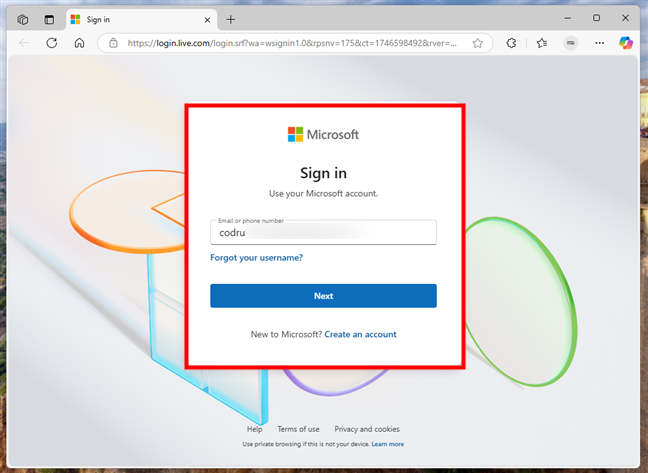
Using your computer or any available device including an Android smartphone open a web browser and go to family.microsoft.com. Sign in with your Microsoft account that’s designated as the parent or family organizer.

edge-filter-content

Sign in to Microsoft Family Safety with Microsoft account
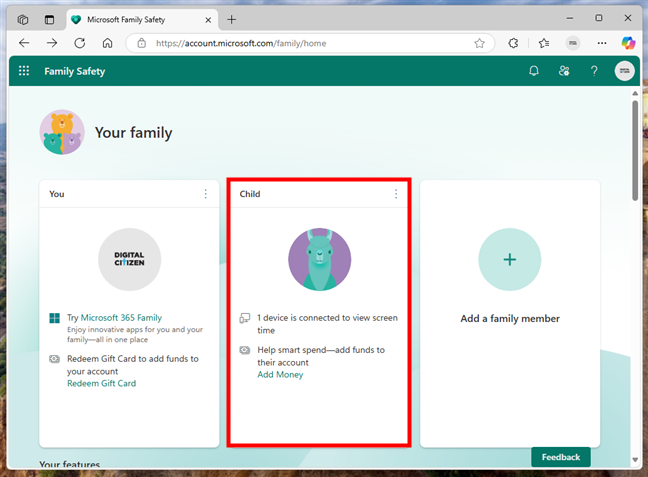
Once you’re signed in, you see an overview of your family group. Click or tap your child’s name to open their profile.

edge-filter-content-1

Access your child's profile in Microsoft Family Safety
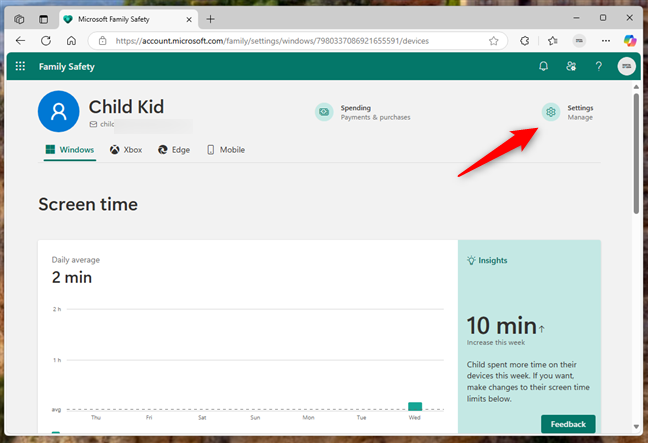
This is where you find all controls for managing their screen time, browsing permissions, and online activity. 

Step 2: Access your child’s account settings

In the upper-right corner of your child’s profile page, click the Settings button. Beneath it, it says Manage.

Click the Settings button in the top-right corner
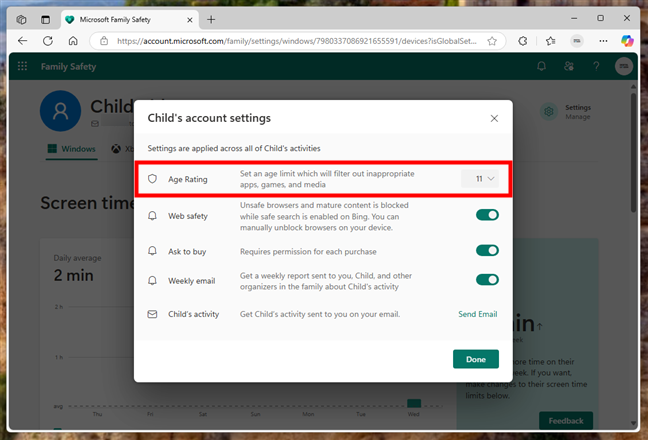
Then, you can…

Step 3: Set an appropriate Age Rating and enable Web safety

In the child’s account settings pop-up window, find the Age Rating section. This setting is typically determined automatically by Microsoft based on the birthdate provided when the account was created. It should reflect your child’s actual age, but it’s wise to double-check for accuracy. If needed, you can manually update the setting to enforce stricter or more lenient content restrictions. To do so, click the dropdown menu and choose the age rating that best suits your child.

Set an appropriate age rating

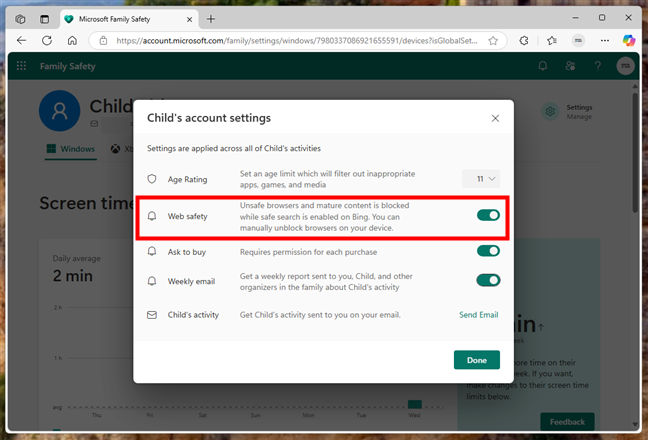
In the same settings window, turn on Web Safety. This feature helps protect your child online by blocking unsafe browsers, restricting access to mature content, and enabling safe search on Bing. It works in conjunction with Microsoft Edge’s filtering tools, providing an added layer of browsing security.

Turn on Web safety to filter content

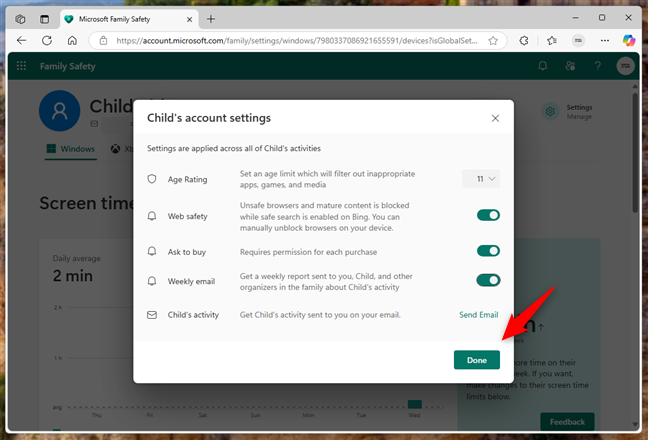
After adjusting the settings, click or tap Done to apply the changes to your child’s devices.

Press Done to save the chnages

These protections will be applied across any Windows PC, Xbox console, or Android device your child uses while signed in with their Microsoft account. And that’s not all

Step 4: Make sure that the website and search filtering are turned on in Microsoft Edge

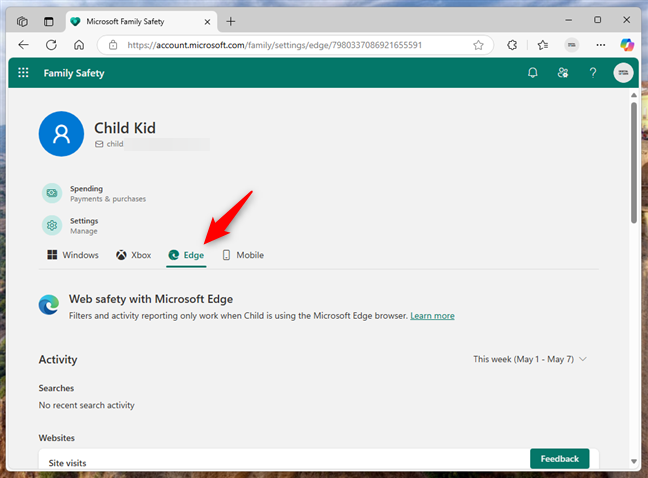
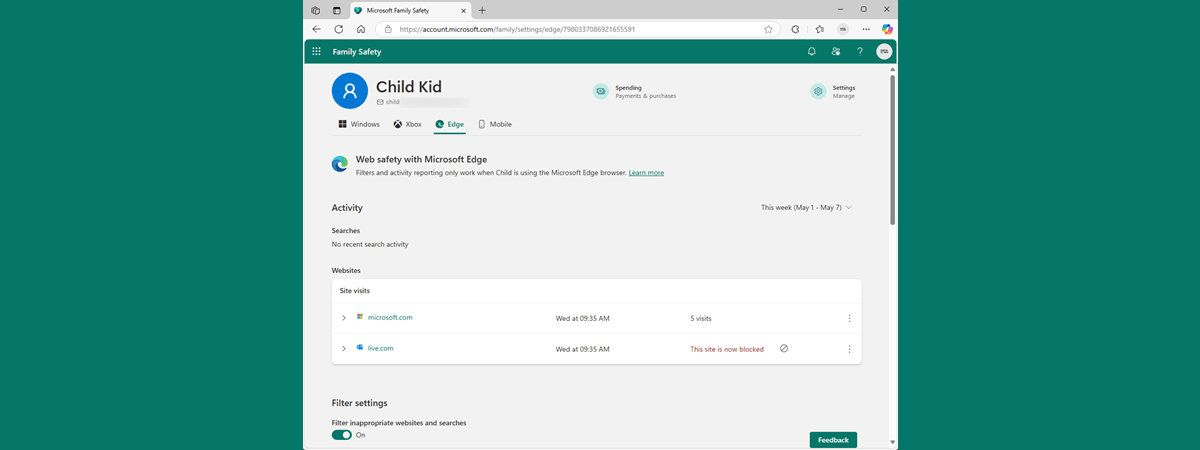
Back in your child’s profile, go to the Edge section. It contains all the tools needed to manage the websites your child can access.

Go to your child's Edge settings

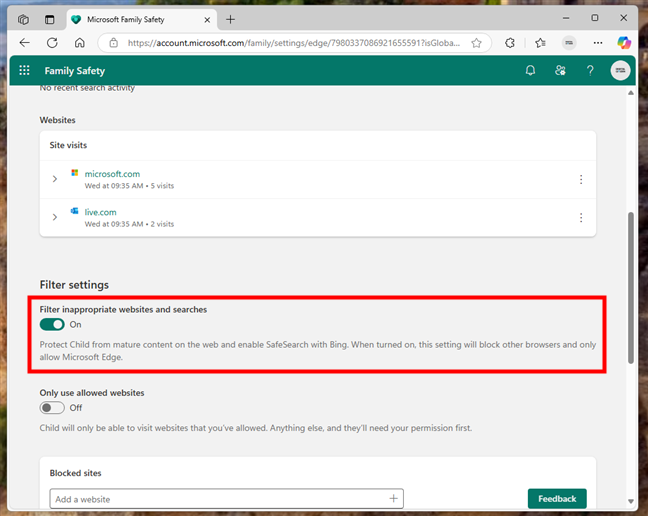
Within the content filters section, locate the option labeled Filter inappropriate websites and searches. If you turned on Web Safety in the previous step, this setting should already be enabled. If it isn’t, make sure to switch it on now. When active, Microsoft Edge will automatically block a wide range of websites that feature adult content, violence, or other harmful material, while also enhancing search safety by filtering out explicit results in Bing.

Turn on Filter inappropriate websites and searches
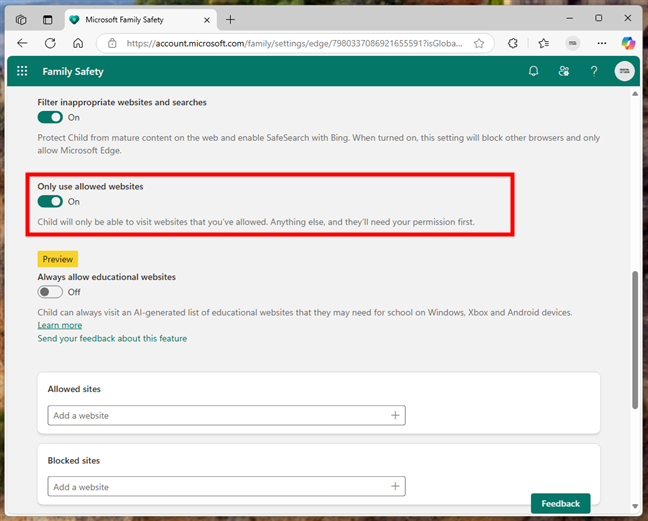
Microsoft regularly updates this blocklist, so you won’t have to manage every detail manually. For instance, if your child searches for violent or adult content on Bing, the filters will automatically hide any inappropriate results.

Step 5: Create a safe browsing list (optional)

If you’d like greater control over your child’s online activity, you can enable the Only use allowed websites setting. When this option is turned on, your child will be restricted to visiting only the websites you’ve specifically approved and added to the allowed list.

edge-filter-content-8

Turn on Only use allowed websites to limit browsing
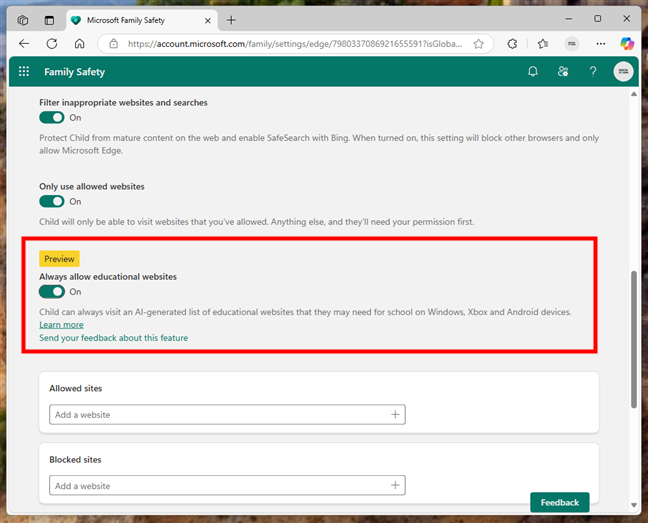
As of now, turning on the Only use allowed websites toggle reveals a preview feature called Always allow educational websites. According to Microsoft, this tool is designed to make safe browsing easier for children by automatically granting access to an AI-curated list of educational sites related to schoolwork, learning apps, and research. Despite this automation, you still maintain full control and can manually block or allow specific sites based on your preferences. Keep in mind, this feature is still in preview and currently only functions in the latest version of Microsoft Edge for Windows.

Always allow educational websites automatically grant access to AI- curated learning sites
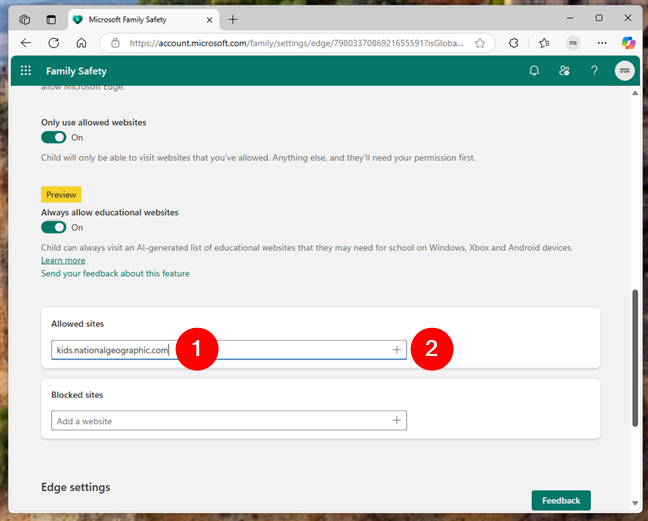
Returning to the section where you manage allowed and blocked websites—this feature is particularly useful for younger children. It helps turn Microsoft Edge into a highly secure browsing environment by limiting access to only the websites you’ve personally reviewed and approved. To configure this, scroll down until you see the Allowed sites and Blocked sites sections. Here, you can enter the exact web addresses you want to allow or block, then click the + (plus) button to save each entry.

How to add websites to the Allowed sites or Blocked sites lists.
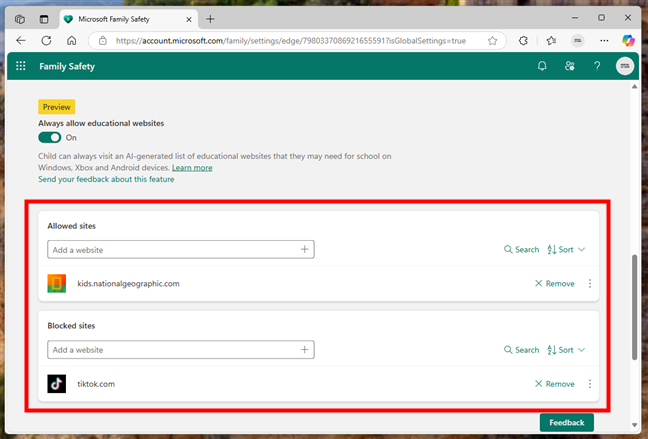
For example, I decided to allow kids.nationalgeographic.com, as it offers safe, engaging science content for children. On the other hand, I chose to block tiktok.com, which is often filtered automatically, but I wanted to make sure that my child never visits this social network.

The Allowed sites or Blocked sites lists let you search and sort the websites in them

After you add websites to Allowed sites and/or Blocked sites, you see additional options that let you search through the entries, sort them, or remove them. These controls help you update the list over time as your child’s needs change.

Important: These websites and content filters work only in Microsoft Edge!

It’s important to note that the web filtering settings you’ve set so far only work within Microsoft Edge. If your child uses another browser like Google Chrome, Mozilla Firefox, or Opera those restrictions won’t apply. To ensure your safety rules are consistently enforced, you’ll need to either uninstall these alternative browsers or block access to them using the App and game limits feature in Microsoft Family Safety. Taking this step is crucial if you want to ensure your child stays within the secure browsing environment you’ve established.

Did you set sites and content filters in Edge for your child?

Using Microsoft Edge alongside Microsoft Family Safety gives you strong control over your child’s online experience. You can block unsafe websites and create a personalized list of sites you trust and find helpful. This is especially useful when your child is just starting to explore the internet. Since all the settings are managed through a centralized dashboard, it’s simple to adjust them as your child grows or your household rules evolve. Have you tried setting up website filters or content restrictions with Microsoft’s family features? Was the process straightforward, or did you encounter any confusion or missing options? I’d love to hear about your experience in the comments below.

Leave a Reply

Your email address will not be published. Required fields are marked *